First, what is Trend Micro?
Trend Micro Site Safety Center is a public tool that looks up the rating of a website address. The rating comes from Trend Micro Web Reputation Services. A URL gets a safety rating and a content category.
The page defines four ratings: Safe, Dangerous, Suspicious and Untested. A site owner uses the center to see how Trend Micro rates a page, and to ask for a new rating or category when the current one is wrong.
Who can't reach you right now
Where it's used, and who shares it
These engines are independent from Trend Micro. If they flag you too, each one needs its own request:
 Google Safe Browsing →
 Kaspersky →
 ESET →
 Bitdefender →
How to tell if you're flagged
 Trend Micro Site Safety Center (global.sitesafety.trendmicro.com). Type your URL into the "Is it safe?" box and click CHECK NOW. The result page shows a safety rating and a category.
 VirusTotal. Scan the URL and read the vendor list. The same scan shows whether other engines flag you too.
- User reports. Ask affected users for a screenshot of the block page and the name of the security product they use.
Asking Trend Micro to fix it
Look up your URL
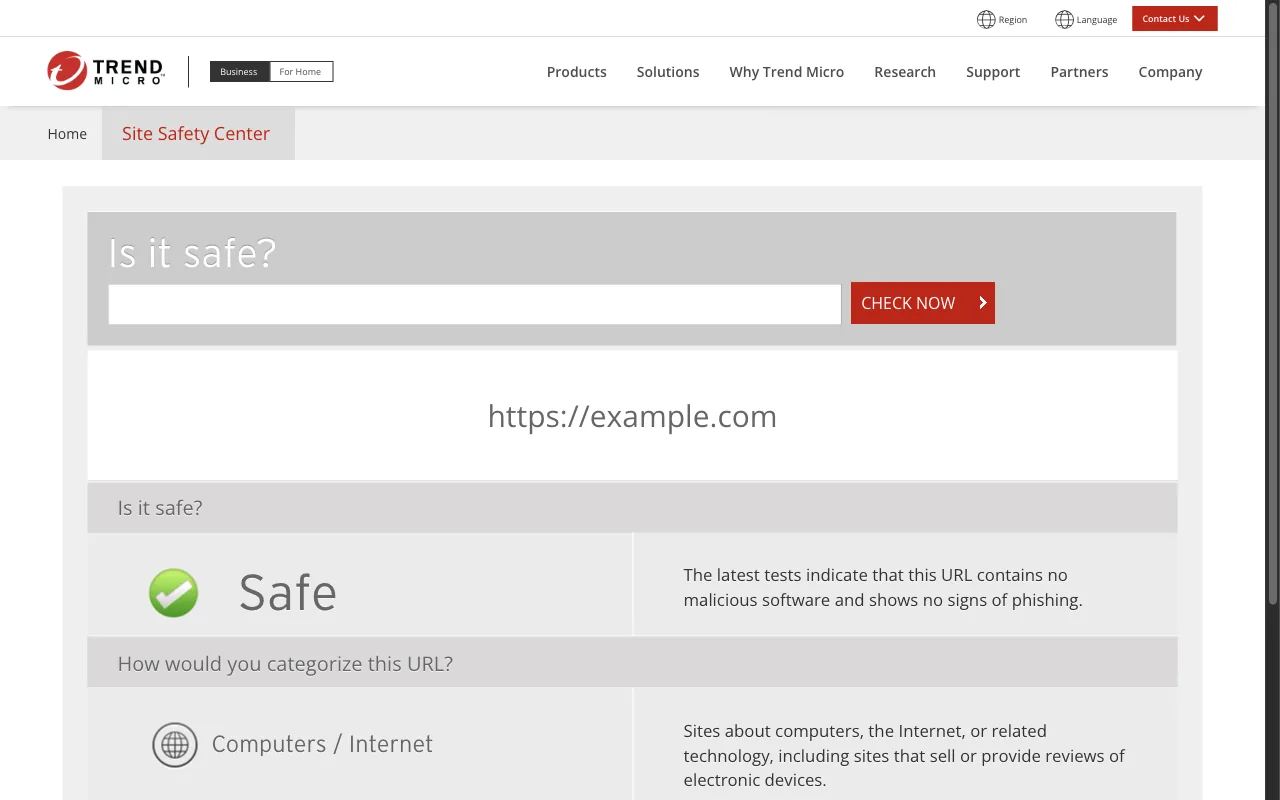
Open global.sitesafety.trendmicro.com, type the full URL into the "Is it safe?" box and click CHECK NOW. The result page shows your URL, a safety rating and a category under the question "How would you categorize this URL?". For example.com the page shows Safe, with the text "The latest tests indicate that this URL contains no malicious software and shows no signs of phishing", and the category Computers / Internet. Below the category sits the RECLASSIFY REQUEST button. Write down the rating and the category before you go on.
Check that it is a mistake
Scan your server and your third-party scripts for injected code, and look for pages that copy another brand or ask for passwords. Fix anything you find first.
Send the review request
On the result page click RECLASSIFY REQUEST, then "Proceed to URL Reclassification Request". This path is for home users, site owners and others, and it needs no account. We could not open the form ourselves, so the field list below comes from Trend Micro's help article. The form has these fields in this order: the website link, the Safety Rating (Safe or Dangerous), the content category (you can suggest a different one), an "Introduce yourself" group of checkboxes ("I own the website" and "I am a Trend Micro customer"), a comments box, your email address and a CAPTCHA, then OK. The help article lists no company name field and no company email requirement, so a personal address is fine. Trend Micro then sends a validation link to that address. The request is not processed until you follow the link. Trend Micro customers put their subscription serial number in the comments box. Customers of Medium Business or Enterprise products use the Business Support Portal instead: log in, then choose New Case, Threat Issue, URL Reclassification.
Website flagged as phishing or put in a wrong category

Website link:     hxxps://example[.]com
Safety Rating:    Safe
Content category: leave as shown, or suggest a different category
Introduce yourself: tick "I own the website"
Comments:         hxxps://example[.]com is the website of our company,
                  Example Ltd. It is rated Dangerous (or placed in the
                  wrong category). We own the domain and run the site
                  ourselves. The site offers nothing to download.
                  Please review the rating.
Email address:    name[at]example[.]com
CAPTCHA:          tick the box, then click OK
Wait and check the result
Follow the validation link in the email first. Trend Micro's help article says to wait for a response from the Web Reputation Services team and gives no number of days. Look the URL up in Site Safety Center again and compare the rating and category with the ones you wrote down in step 1.
Other ways to report
Trend Micro explains its own rules for false positives on these pages:
VirusTotal's list of vendor contacts gives this address for false positive reports to Trend Micro. Use it when the route above does not work for you. Put the full URL and the link to your VirusTotal report in the message. A personal email address is fine.
[email protected]
An earlier copy of VirusTotal's contact list also named this address for Trend Micro. The current list no longer shows it, so try the route above first.
[email protected]